AI Tutorials
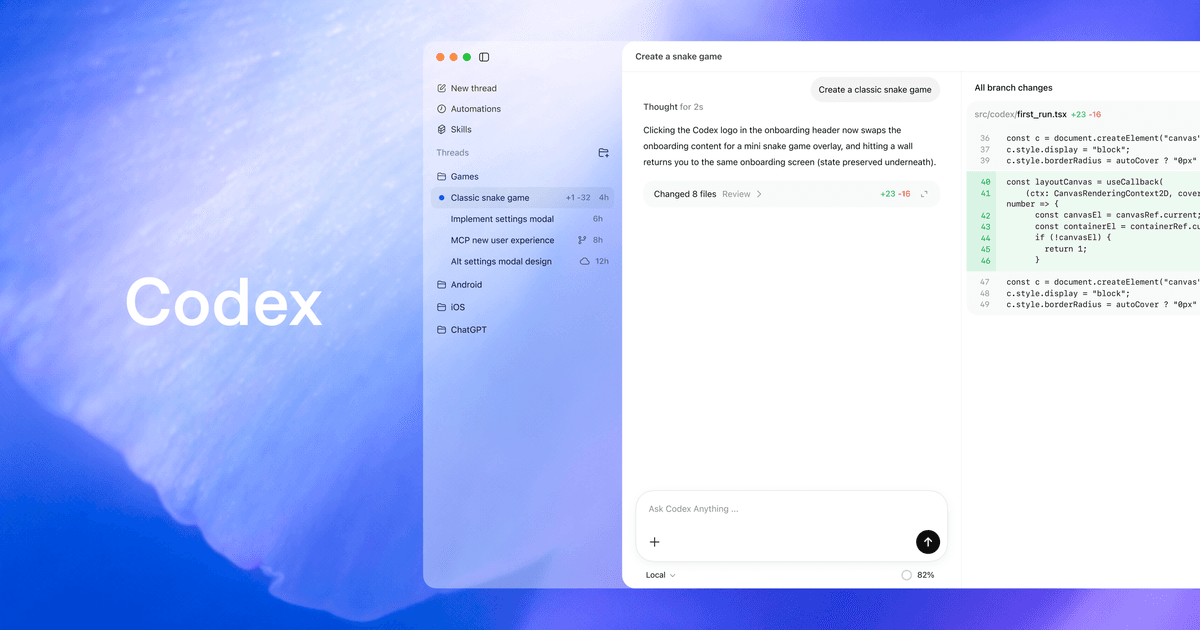
OpenAI Codex Tutorial: Complete Guide to the AI Coding Agent
Learn OpenAI Codex end to end: install Codex CLI, use the app, IDE and cloud, configure MCP, AGENTS.md, sandboxing, reviews, CI and SDK workflows.
Read MoreZharfAI Team
AI Development

Are you looking for an AI assistant that truly understands your codebase and can help you write, debug, and refactor code directly from your terminal? Claude Code by Anthropic is exactly what you need. In this comprehensive tutorial, we'll walk you through everything from installation to advanced features.
Claude Code is Anthropic's official command-line interface (CLI) tool that brings Claude's AI capabilities directly into your development workflow. Unlike web-based AI assistants, Claude Code operates within your terminal and has direct access to your project files.
Here's what makes Claude Code unique:

Before installing Claude Code, ensure your system meets these requirements:
| Requirement | Minimum Specification |
|---|---|
| Operating System | macOS 10.15+, Ubuntu 20.04+, Windows 10+ (with WSL or Git Bash) |
| Memory (RAM) | 4 GB |
| Node.js | Version 18 or higher (only required for npm installation) |
| Network | Active internet connection |
| Shell | Bash, Zsh, or Fish recommended |
This is the fastest and most reliable method:
For macOS and Linux:
curl -fsSL https://claude.ai/install.sh | bash
For Windows PowerShell:
irm https://claude.ai/install.ps1 | iex
For Windows Command Prompt:
curl -fsSL https://claude.ai/install.cmd -o install.cmd && install.cmd && del install.cmd
If you prefer using Homebrew:
brew install --cask claude-code
For developers who prefer npm:
npm install -g @anthropic-ai/claude-code
After installation, verify everything is working correctly:
claude doctor
This command checks your installation health and reports any issues.
Claude Code requires authentication. You have three options:
To authenticate, simply run:
claude
Follow the prompts to log in with your preferred method.
Navigate to your project directory and start Claude Code:
cd /path/to/your/project
claude
You can also start with an initial prompt:
claude "explain this codebase structure"
| Command | What It Does | Example |
|---|---|---|
claude | Start interactive session | claude |
claude "prompt" | Start with initial prompt | claude "find bugs in auth module" |
claude -p "prompt" | Run single query and exit | claude -p "what does main.ts do?" |
claude -c | Continue last conversation | claude -c |
claude -r "name" | Resume named session | claude -r "auth-refactor" |
claude update | Update to latest version | claude update |
When you start Claude Code, you'll see a prompt where you can:
@filename syntax! prefix
Slash commands are powerful shortcuts that help you navigate and control Claude Code efficiently.
| Command | Description |
|---|---|
/resume | Resume a previous conversation |
/rename <name> | Give your current session a memorable name |
/clear | Clear the conversation history |
/rewind | Undo recent changes to code or conversation |
/exit | Exit Claude Code |
| Command | Description |
|---|---|
/config | Open the settings interface |
/permissions | View and modify tool permissions |
/model | Switch between AI models |
/status | Display version and connection status |
/help | Show all available commands |
| Command | Description |
|---|---|
/memory | Edit your project's CLAUDE.md file |
/context | Visualize how much context is being used |
/compact | Compress conversation to save tokens |
/init | Create a new CLAUDE.md for your project |
| Command | Description |
|---|---|
/cost | Show token usage and costs |
/export | Save conversation to a file |
/hooks | Manage automation hooks |
/mcp | Configure MCP servers |
/agents | Manage AI subagents |
/vim | Enable vim-style editing |
Master these shortcuts to dramatically improve your productivity.
| Shortcut | Action |
|---|---|
Ctrl+C | Cancel current operation |
Ctrl+D | Exit Claude Code |
Ctrl+L | Clear the terminal screen |
Ctrl+R | Search through command history |
↑ / ↓ | Navigate through previous commands |
Esc + Esc | Rewind recent changes |
Shift+Tab | Cycle through permission modes |
| Method | How to Use |
|---|---|
| Backslash | Type \ then press Enter |
| Option+Enter | macOS default |
| Shift+Enter | After running /terminal-setup |
| Ctrl+J | Works on all systems |
| Prefix | What It Does |
|---|---|
# | Add note to CLAUDE.md memory |
/ | Execute slash command |
! | Run shell command directly |
@ | Reference a file |
? | Show available shortcuts |
Claude Code uses a layered configuration system. Settings are applied in this order (highest priority first):
.claude/settings.local.json (not committed to git).claude/settings.json (committed to git)~/.claude/settings.json (your personal defaults)Enterprise (macOS): /Library/Application Support/ClaudeCode/managed-settings.json
Enterprise (Linux): /etc/claude-code/managed-settings.json
Enterprise (Windows): C:\Program Files\ClaudeCode\managed-settings.json
User Settings: ~/.claude/settings.json
Project (Shared): .claude/settings.json
Project (Local): .claude/settings.local.json
Here's a comprehensive settings file with explanations:
{
  "permissions": {
    "allow": [
      "Bash(npm run:*)",
      "Bash(git status:*)",
      "Bash(git log:*)",
      "Read"
    ],
    "ask": [
      "Bash(git push:*)",
      "Write",
      "Edit"
    ],
    "deny": [
      "Read(.env)",
      "Read(.env.*)",
      "Read(secrets/**)",
      "Bash(rm -rf:*)",
      "Bash(curl:*)"
    ],
    "defaultMode": "default",
    "additionalDirectories": ["../shared-libs"]
  },
  "model": "claude-sonnet-4-5-20250929",
  "outputStyle": "Explanatory",
  "alwaysThinkingEnabled": true,
  "enableAllProjectMcpServers": true
}
| Mode | Behavior | Best For |
|---|---|---|
default | Asks permission on first use of each tool | Daily development |
acceptEdits | Automatically accepts file edits | Trusted projects |
plan | Read-only mode, no modifications allowed | Code review |
bypassPermissions | Skips all permission prompts | Use with extreme caution |
Hooks allow you to run custom scripts before or after Claude performs actions. This is incredibly powerful for automation.
Hooks are event-driven scripts that execute automatically when certain actions occur. Think of them as "triggers" that fire when Claude does something.
| Event | When It Fires | Can Block Action? |
|---|---|---|
PreToolUse | Before Claude uses any tool | Yes |
PostToolUse | After a tool completes | No |
PermissionRequest | When Claude requests permission | Yes |
UserPromptSubmit | When you submit a prompt | Yes |
Stop | When Claude finishes responding | No |
SessionStart | When a new session begins | No |
SessionEnd | When session ends | No |
Add hooks to your settings file:
{
  "hooks": {
    "PreToolUse": [
      {
        "matcher": "Bash",
        "hooks": [
          {
            "type": "command",
            "command": "your-script-here"
          }
        ]
      }
    ]
  }
}
Automatically run Prettier whenever Claude edits a file:
{
  "hooks": {
    "PostToolUse": [{
      "matcher": "Edit|Write",
      "hooks": [{
        "type": "command",
        "command": "jq -r '.tool_input.file_path' | xargs npx prettier --write"
      }]
    }]
  }
}
Prevent Claude from modifying environment files:
{
  "hooks": {
    "PreToolUse": [{
      "matcher": "Edit|Write",
      "hooks": [{
        "type": "command",
        "command": "python3 -c \"import json,sys; d=json.load(sys.stdin); path=d.get('tool_input',{}).get('file_path',''); sys.exit(2 if '.env' in path or 'secret' in path.lower() else 0)\""
      }]
    }]
  }
}
Keep a record of every command Claude executes:
{
  "hooks": {
    "PostToolUse": [{
      "matcher": "Bash",
      "hooks": [{
        "type": "command",
        "command": "jq -r '.tool_input.command' >> ~/.claude/command-history.log"
      }]
    }]
  }
}
MCP stands for Model Context Protocol. It's an open standard developed by Anthropic that allows AI assistants to connect with external tools and services.
Think of MCP servers as "plugins" for Claude Code. They enable Claude to:
Without MCP, Claude Code is limited to your local files and shell commands. With MCP, you can:

claude mcp add --transport http <server-name> <server-url>
Examples:
# Add GitHub MCP server
claude mcp add --transport http github https://api.githubcopilot.com/mcp/

# Add Notion MCP server
claude mcp add --transport http notion https://mcp.notion.com/mcp
claude mcp add --transport stdio <server-name> -- <command>
Example with environment variables:
claude mcp add --transport stdio postgres \
  --env DATABASE_URL=postgresql://localhost:5432/mydb \
  -- npx -y @modelcontextprotocol/server-postgres
| Command | Description |
|---|---|
claude mcp list | Show all configured servers |
claude mcp get <name> | View server details |
claude mcp remove <name> | Delete a server |
claude mcp reset-project-choices | Reset server permissions |
| Server | What It Does |
|---|---|
| GitHub | Manage repositories, PRs, issues |
| PostgreSQL | Query databases |
| Slack | Send and read messages |
| Notion | Access Notion pages and databases |
| Sentry | Monitor application errors |
| Figma | Access design files |
| AWS | Interact with cloud resources |
You can also configure MCP servers in a .mcp.json file:
{
  "mcpServers": {
    "github": {
      "type": "http",
      "url": "https://api.githubcopilot.com/mcp/"
    },
    "postgres": {
      "type": "stdio",
      "command": "npx",
      "args": ["-y", "@modelcontextprotocol/server-postgres"],
      "env": {
        "DATABASE_URL": "postgresql://localhost:5432/mydb"
      }
    }
  }
}
CLAUDE.md is a special markdown file that teaches Claude about your project. When Claude starts, it automatically reads this file to understand:
Run this command to create a CLAUDE.md file:
/init
Here's a well-structured template. Create a file called CLAUDE.md in your project root with sections like:
Project Overview - Brief description of what this project does
Tech Stack - List your technologies (React, Node.js, PostgreSQL, etc.)
Project Structure - Describe your folder organization:
src/components/ - Reusable UI componentssrc/pages/ - Route componentssrc/hooks/ - Custom React hookssrc/services/ - API client functionssrc/utils/ - Helper functionsCoding Standards - Your team's conventions:
Common Commands - Frequently used scripts:
npm run dev - Start development servernpm run build - Create production buildnpm run test - Run test suitenpm run lint - Check code styleGit Workflow - Your branching strategy and commit conventions
Environment Variables - Required variables (without actual values)
Claude Code reads multiple memory files in this order:
./CLAUDE.md or ./.claude/CLAUDE.md./.claude/rules/*.md~/.claude/CLAUDE.md./CLAUDE.local.md (gitignored, personal)
Cmd+Shift+X (macOS) or Ctrl+Shift+X (Windows/Linux)| Shortcut | Action |
|---|---|
Cmd/Ctrl+Esc | Focus Claude Code panel |
Cmd/Ctrl+Shift+Esc | Open in new tab |
Alt+K | Insert @-mention with line numbers |
Cmd/Ctrl+N | Start new conversation |
@filename:line to reference specific code| Shortcut | Action |
|---|---|
Cmd/Ctrl+Esc | Quick launch Claude |
Cmd+Option+K (macOS) | Insert file reference |
Alt+Ctrl+K (Windows/Linux) | Insert file reference |
For complex problems, enable extended thinking:
ultrathink: design a microservices architecture for an e-commerce platform
This gives Claude more "thinking time" for better solutions.
Claude Code can spawn specialized subagents for specific tasks:
/agents
Built-in subagent types:
Run long operations in the background:
Ctrl+B  # Move current operation to background
/bashes # List all background tasks
Review before executing:
claude --permission-mode plan
Or switch during a session with Shift+Tab.
Always deny access to sensitive files:
{
  "permissions": {
    "deny": [
      "Read(.env)",
      "Read(.env.*)",
      "Read(secrets/**)",
      "Read(**/*.pem)",
      "Read(**/*.key)",
      "Read(**/credentials*)"
    ]
  }
}
Block potentially harmful shell commands:
{
  "permissions": {
    "deny": [
      "Bash(rm -rf:*)",
      "Bash(curl:*)",
      "Bash(wget:*)",
      "Bash(sudo:*)"
    ]
  }
}
Add pre-execution validation for extra safety:
{
  "hooks": {
    "PreToolUse": [{
      "matcher": "Bash",
      "hooks": [{
        "type": "prompt",
        "prompt": "Analyze this command for security risks. Respond with {\"action\": \"allow\"} if safe or {\"action\": \"deny\", \"reason\": \"explanation\"} if dangerous."
      }]
    }]
  }
}
Be Specific:
❌ "Fix the bug"
✅ "Fix the authentication bug in src/auth/login.ts where users see a blank screen after entering incorrect credentials"
Use Step-by-Step Instructions:
1. Create a new migration for the users table
2. Add email verification field
3. Update the User model
4. Write unit tests for the changes
Reference Files Directly:
Explain how @src/auth/middleware.ts validates JWT tokens and integrates with @src/services/user.ts
# Name your sessions for easy recall
/rename feature-user-auth

# Resume later
claude -r feature-user-auth

# Export important conversations
/export auth-implementation-notes.md
/plan to explore before making changesclaude # Start session
claude "task" # Start with prompt
claude -c # Continue last session
claude -r "name" # Resume named session
@filename # Reference file
/memory # Edit CLAUDE.md
/config # Settings
/cost # Token usage
/help # All commands
ANTHROPIC_API_KEY        # API authentication
DISABLE_AUTOUPDATER      # Disable auto-updates
DISABLE_TELEMETRY        # Opt out of telemetry
MAX_THINKING_TOKENS      # Extended thinking budget
CLAUDE_DEBUG             # Enable debug mode
~/.claude/settings.json   # User settings
~/.claude/CLAUDE.md       # User memory
.claude/settings.json     # Project settings (shared)
.claude/settings.local.json # Project settings (personal)
CLAUDE.md                 # Project memory
.mcp.json                 # MCP server config
Claude Code represents a fundamental shift in how developers interact with AI assistants. By operating directly in your terminal with full codebase access, file editing capabilities, and extensibility through hooks and MCP servers, it transforms from a simple chatbot into a genuine coding partner.
Install Claude Code today:
curl -fsSL https://claude.ai/install.sh | bash
claude
Start coding smarter, not harder!
This tutorial is maintained by the ZharfAI team. For the latest updates, visit our blog regularly.
Learn OpenAI Codex end to end: install Codex CLI, use the app, IDE and cloud, configure MCP, AGENTS.md, sandboxing, reviews, CI and SDK workflows.
Read More
A comprehensive tutorial on building powerful AI agents and automating enterprise processes with n8n, the flexible node-based automation platform.
Read More
Learn how AI-powered workflow automation is transforming enterprise operations, from hyperautomation strategies to selecting the right platforms for your business.
Read MoreGet in touch with our team to discuss how we can help your business.