AI Tutorials
OpenCode Tutorial: Complete Guide to the Open-Source Coding Agent
Master OpenCode from installation to providers, AGENTS.md, plan and build agents, permissions, skills, MCP, plugins, IDE, desktop, server, and GitHub workflows.
Read MoreZharfAI Team
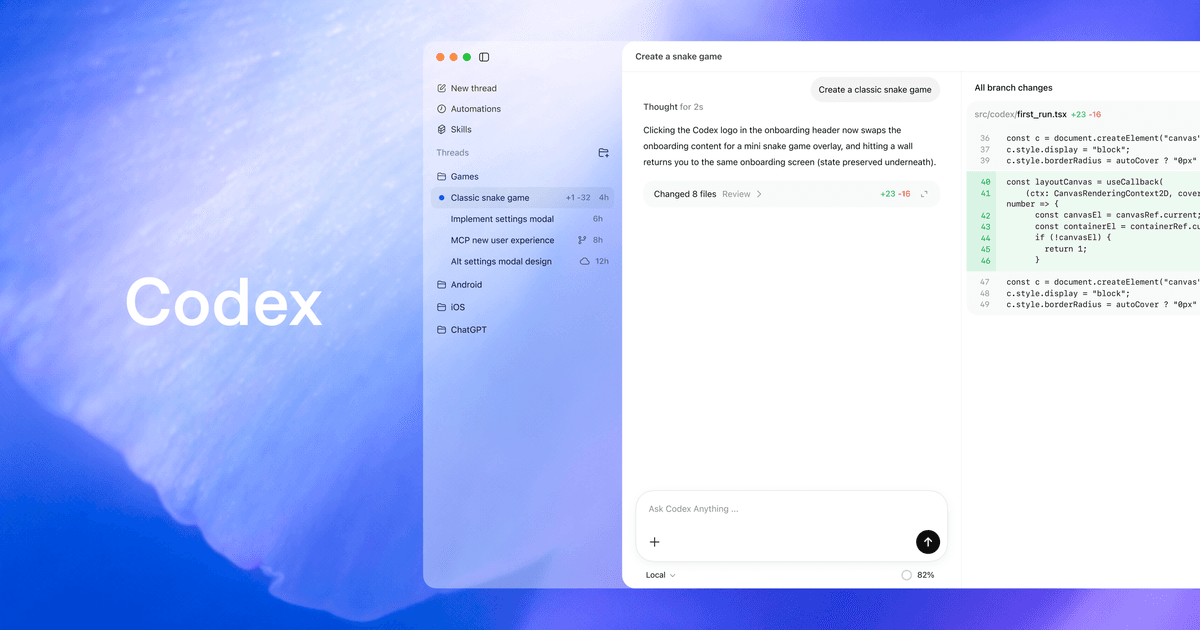
OpenAI Codex is a coding agent that can inspect a repository, edit files, run commands, test changes, review diffs, and continue a multi-step engineering task. The important word is agent: instead of returning only a code snippet, Codex can work inside an authorized environment and gather evidence that the change works.
This tutorial was revalidated on August 6, 2026 against OpenAI's current Codex manual and a local Codex CLI installation. Codex changes quickly: surface names, models, entitlements, commands, and installation options can drift. Use the official Codex documentation, current product manual, and Codex changelog for the current state. Availability can still depend on plan, workspace policy, platform, region, authentication method, and feature maturity.
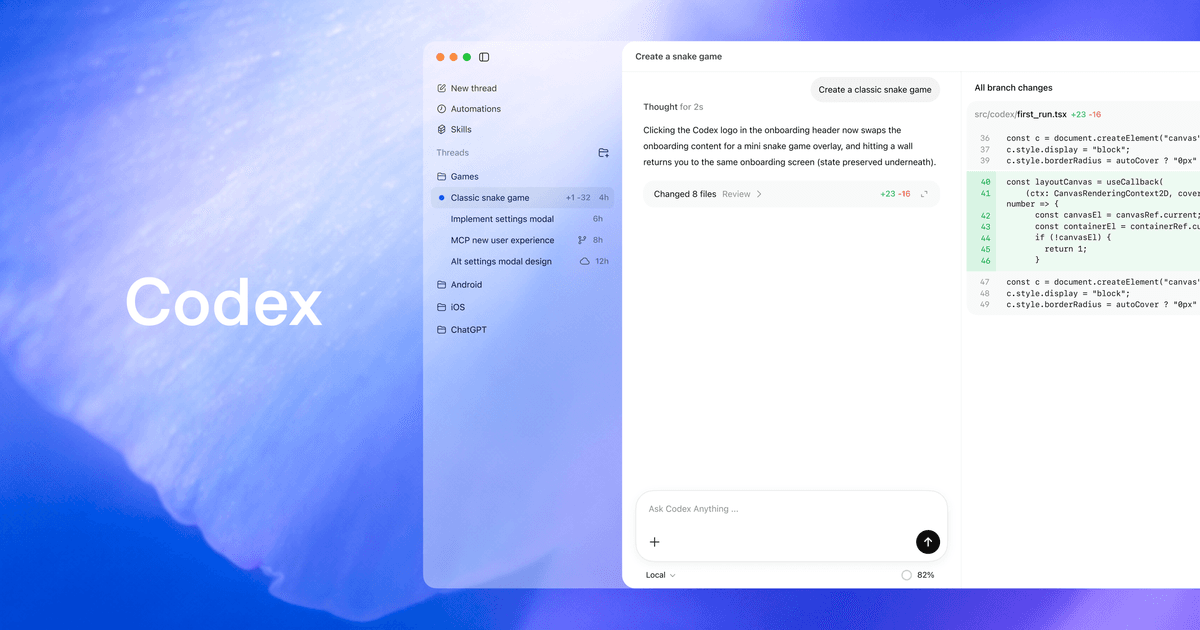
Codex is available through several surfaces with different advantages:
codex exec.OpenAI’s current Codex CLI page explicitly describes local repository work, configurable permissions, and interactive or scripted use. The current OpenAI quickstart describes Codex inside the ChatGPT desktop experience as well as CLI, IDE, web, and cloud options. Older articles may call the desktop product simply “the Codex app”; follow current official naming on your platform.
Choose the smallest surface that matches the job. A one-file explanation may belong in the IDE. A repository migration with tests is easier in a dedicated Codex task. A repeatable CI analysis belongs in noninteractive mode. The intelligence is only part of the system; environment, context, permissions, and verification determine the result.
As of August 6, 2026, the official CLI page recommends the standalone installer for macOS and Linux:
curl -fsSL https://chatgpt.com/codex/install.sh | sh
Open a project directory and start Codex:
cd /path/to/your/repository
codex
On first use, choose an available sign-in method. Authentication methods and feature availability can differ; use the official authentication documentation for current details. An API key does not automatically imply access to ChatGPT workspace, cloud-task, or connector features.
Useful local checks include:
codex --version
codex --help
codex doctor
The local CLI used to validate this article exposes interactive mode plus commands such as exec, review, MCP and plugin management, login, update, sandboxing, session resume/fork, and cloud browsing. Some commands are explicitly marked experimental in CLI help, so do not build a critical workflow around them without checking the version and docs you deploy.
Inside interactive mode, current official examples include:
/status to inspect session configuration;/permissions to choose what Codex may do;/model to select a model and reasoning effort;/review to review changes;/init to help create repository guidance.Treat these as dated examples. Run ?, /help, or the equivalent shown by your installed release when a command differs.
“Fix the app” is not a useful specification. A strong task names the outcome, evidence, boundaries, and definition of done:
Fix the duplicate invoice submission bug.

Reproduce it from the existing tests or add a focused failing test.
Trace the request through the API and persistence layer.
Make the smallest behavior-preserving fix.
Do not change database schema or unrelated formatting.
Run the focused test, then the relevant suite.
Review the final diff for regressions and report residual risk.
Include:
For unfamiliar work, ask for a short plan after repository inspection. For a small, well-specified fix, let Codex act directly. Planning is valuable when there are competing architectures or irreversible choices; it is overhead when the next safe step is obvious.
Codex works best when it can close the loop: read, edit, run, inspect, and correct. Our guide to AI software-engineering agents explains the broader agent pattern and its limits.
Prompts describe one task. AGENTS.md records conventions that should apply repeatedly: architecture, commands, generated-file rules, test expectations, review priorities, and local hazards.
OpenAI’s official AGENTS.md guide documents layered instructions. Keep the root file concise and place more specific guidance nearer a subtree when only that code needs it.
Example:
## Repository map

- `apps/web`: Next.js user interface
- `services/api`: API and business rules
- `packages/schema`: generated clients; do not edit by hand

## Verification

- Run `npm test -- --runInBand` for API changes.
- Run `npm run lint` before final handoff.
- For UI changes, verify desktop and mobile layouts.

## Safety

- Never run production migrations.
- Do not modify `.env` files or commit credentials.
- Preserve unrelated working-tree changes.
Write instructions that another engineer could follow. “Be careful” is weak; “do not run production migrations; generate SQL and stop for approval” is actionable. Keep volatile details such as current issue scope in the task prompt, not permanent repository guidance.
Codex can read files, edit the workspace, run commands, and—when enabled—reach network or external tools. The safe configuration is task-dependent.
The current CLI exposes sandbox choices including read-only, workspace-write, and full access, plus approval policies. OpenAI’s official Codex security documentation should be the source of truth for the current permission model.
Use these principles:
Avoid --dangerously-bypass-approvals-and-sandbox unless the process already runs inside a deliberately designed external sandbox. The flag name is an accurate warning.
Configuration can live in Codex configuration files and command-line overrides. Do not copy an old config.toml blindly: keys and accepted values can change. Check the live configuration reference for your installed version and use strict validation where supported.
These extension surfaces solve different problems:
Use the smallest one. If a repository merely needs npm test, put it in AGENTS.md. If a repeated security-review workflow needs reference material and scripts, use a skill. If Codex must query a private issue tracker, connect an authorized tool rather than pasting data into every prompt. If an organization must block a forbidden command mechanically, a hook or managed policy is stronger than prose.
CLI MCP management begins with:
codex mcp --help
codex mcp list
Only add trusted servers. Review the executable or remote endpoint, requested credentials, tools exposed, data destinations, and update process. A malicious document can attempt prompt injection; tool authorization must not depend on the document obeying your intent.
OpenAI’s current docs index links dedicated pages for MCP, skills, plugins, and hooks. Because these surfaces are evolving, verify exact package structures and commands there instead of relying on copied examples.

The desktop experience is useful when work needs local files, visual review, long-running tasks, or capabilities outside a terminal. Open only the folder the task should modify. Use separate worktrees for independent implementation so parallel tasks do not overwrite one another.
The IDE extension is strongest when the editor selection and open files are valuable context. Still state the requested behavior and validation; highlighted code is not a complete specification.
Cloud work requires environment setup: repository access, dependencies, secrets, and setup commands. Keep secrets scoped and rotate them. A cloud task cannot validate a local-only service or device unless the environment exposes it. Review the resulting diff and test evidence before merging.
Parallel work is useful when tasks are disjoint. It is harmful when agents edit the same files, depend on an undecided interface, or share mutable state. Split by ownership boundary and define the integration contract first.
Official OpenAI product image. Exact controls depend on the selected surface, platform, workspace, and rollout.
Codex can separate planning from implementation. In the CLI, use the current mode control shown by your version—official guidance documents /plan and mode switching—to ask Codex to investigate, identify files and dependencies, and propose a verifiable sequence before editing.
Plan mode is most valuable when the work crosses packages, changes a contract, includes a migration, or has uncertain reproduction. Ask the plan to include:
For very long work, keep an execution plan in the repository or task artifacts and update it as evidence changes. A plan is a living coordination document, not permission to execute every step automatically.
Current Codex supports explicit subagent delegation and parallel coordination. In the CLI, /agent lets you inspect or switch among active agents where supported. Durable custom agent definitions can live under .codex/agents/*.toml, with roles such as explorer, reviewer, or specialist worker.
Use subagents when they create independent evidence: mapping separate packages, researching unrelated options, reproducing a defect, or reviewing security and tests. Keep one integration owner. Parallel writes should use isolated worktrees or disjoint file ownership; otherwise agents can invalidate each other's assumptions.
Subagents inherit important sandbox and permission constraints from the parent environment. A child agent is not a security boundary, and delegated output is not automatically trusted. Review concrete source references, diffs, commands, and test output. Multi-agent work also multiplies token and coordination cost, so one well-scoped agent remains the default for tightly coupled changes.
See OpenAI's current subagent configuration guide for the installed syntax and defaults.
Projects group related context and chats. Use separate chats for independent outcomes, then give each one a clear task and definition of done. A long thread can retain useful decisions, but it can also accumulate stale assumptions; re-check the repository and current user request before resuming.
In the desktop app, Git worktrees let independent chats use separate checkouts of the same project. This is the safest default for parallel implementation and background scheduled work. The official worktree guide explains local/worktree handoff and cleanup.
Worktrees isolate files, not external systems. Two agents can still collide through a shared database, cloud environment, cache, queue, account, or deployment. Give them separate resources or keep those operations read-only.
Codex now spans more than terminal tools:
These capabilities have different permissions and trust boundaries. Browser text and screenshots are untrusted input. A logged-in session can expose private data and external side effects. Reading a page does not authorize sending a message, submitting a form, changing permissions, publishing, purchasing, or uploading a file.
Use Browser Developer mode only when debugging truly needs deeper browser access; it expands capability and risk. Verify responsive UI, RTL/LTR behavior, console errors, network state, and the final production URL instead of treating a successful build as visual acceptance.
Official references: Browser, Computer Use, image generation, visualizations, and Sites.
Codex memories preserve useful personal workflow context across work. They are not a replacement for AGENTS.md: memory is user-scoped and can drift; repository instructions are reviewable, versioned team policy. Never retain secrets, private messages, credentials, one-time codes, protected records, or incidental personal data. Review and remove stale memory.
Scheduled tasks can repeat a tested prompt on local or cloud projects. Define the method as a skill or explicit workflow first, run it manually, then schedule it. A safe scheduled task has bounded scope, cost and time limits, no-data behavior, duplicate detection, an isolated worktree for Git changes, and a human gate before publishing, messaging, merging, deploying, or changing external systems.
The app must remain available for scheduled work that depends on local files. In non-Git folders, a scheduled task may operate directly in the project directory, so prefer a version-controlled project or a dedicated disposable copy. Review the memory guide and scheduled-task guide for current controls.
For product integration, use the supported interface instead of scraping terminal text:
codex exec output supports scripts and CI;These interfaces do not make agent output deterministic. Record the version, model, prompt, repository revision, sandbox/permission configuration, tool events, exit status, tests, and final diff. Security scans are scoped evidence, not audit certification; triage findings and independently verify high-risk fixes.
Start with the current developer workflows index, Codex SDK, App Server, and Codex Security CLI.
Codex can review local changes and supported GitHub pull-request workflows. The official code-review guide describes current review paths.
For local review:
codex review
Ask review to prioritize correctness, security, data loss, concurrency, compatibility, and missing tests—not formatting trivia. Good review guidance is specific:
## Review priorities

- Identify authorization bypasses and tenant-data leakage first.
- Check migrations for rollback and mixed-version compatibility.
- Treat generated files as outputs, not source edits.
- Report only actionable findings with file and line evidence.
AI review is a second set of eyes, not merge authority. Run tests, static analysis, type checks, security tools, and human review appropriate to risk. A review that finds nothing does not prove the change is safe.
codex exec runs noninteractively and is the foundation for scripts or CI. Start with read-only analysis:
codex exec "Inspect the current diff for correctness risks. Do not edit files."
For automation:
Never make “the command exited zero” the only quality gate. The job should check the artifact: tests passed, expected files changed, forbidden paths did not change, secrets were not introduced, and the diff meets the task.
Use this repeatable loop:
Ask Codex to read repository instructions, status, relevant code, tests, and recent history. Preserve unrelated user changes.
Create or identify a failing test, log signature, screenshot, or deterministic scenario. Do not fix a guessed problem.
State permitted files, prohibited actions, compatibility requirements, and approval points.
Make the smallest coherent change. For larger features, use checkpoints that can be reviewed independently.
Run focused tests first, then broader checks proportional to risk. For UI, use browser-visible verification. For performance, compare a baseline. For migrations, test forward and rollback paths where applicable.
Inspect git diff, run Codex review, and perform human review. Confirm generated artifacts, lockfiles, and configuration changes are intentional.
Report outcome, files changed, commands run, evidence, limitations, and next operational step. Do not claim deployment, merge, or external action without verifying it.
This loop also creates the traces needed for agent observability.
Before merging:
Measure Codex by accepted outcomes, not lines generated. Useful metrics include cycle time to reviewed change, first-pass test rate, review findings, revert rate, escaped defects, permission escalations, and percentage of tasks with reproducible evidence. High code volume can be a negative signal.
Insufficient context: Codex edits the obvious file but misses a downstream contract. Point it to architecture and ask it to trace callers.
Overbroad scope: A small fix becomes a refactor. Define non-goals and inspect the diff early.
False completion: The agent reports success after a narrow test. State the required checks explicitly.
Dirty worktree damage: Existing changes are overwritten or included. Ask Codex to inspect status and preserve unrelated work.
Permission creep: A blocked command leads to broad access. Approve the narrow action, not full access.
Stale product advice: A copied command or model name no longer exists. Date the guidance and link official docs.
Automation bias: Reviewers trust a polished explanation. Demand tests, file-level evidence, and independent inspection.
No. As of 30 July 2026, official OpenAI documentation describes Codex across the ChatGPT desktop/web experience, CLI, IDE extension, and cloud. Availability varies.
Yes, within the environment and permissions you provide. Use a sandbox and approval policy appropriate to the task.
Yes. It is the documented repository-instruction mechanism, including layered guidance.
Yes, official documentation covers local and supported GitHub review workflows. Human review and CI remain necessary.
Yes, codex exec supports noninteractive use. Run it in a controlled, disposable environment with bounded credentials and machine-verifiable gates.
Not by default. Start with least privilege and escalate narrowly when the requested task genuinely requires it.
Model availability and recommendations change. Use the current model selector and official docs, then evaluate on your repository tasks instead of relying on a universal ranking. Qwen3.8, GLM-5.2, and DeepSeek-V4 belong in provider-flexible agent harnesses; this Codex guide does not imply that third-party models can be selected inside Codex.
Mastering Codex is not memorizing every slash command. It is building a reliable engineering contract around the agent: durable repository guidance, scoped permissions, reproducible tasks, appropriate tools, executable verification, review, and honest handoff. Once that loop works for one task, encode the repeated parts in AGENTS.md, configuration, skills, or CI—and keep volatile product details dated and linked to OpenAI’s official documentation.
Sources reviewed and current as of August 6, 2026:
Master OpenCode from installation to providers, AGENTS.md, plan and build agents, permissions, skills, MCP, plugins, IDE, desktop, server, and GitHub workflows.
Read More
Learn Claude Code installation, permissions, project context, hooks, MCP, workflows, and security practices in this practical developer guide.
Read More
An operating guide for deciding when an AI call may be retried, hedged, failed over, or reconciled—and for preventing timeout ambiguity from becoming duplicate business action.
Read MoreGet in touch with our team to discuss how we can help your business.